The WebView component is used to display web content within your application. You use the control by providing a src attribute that accepts a URL,a path to a local HTML file or directly HTML string.
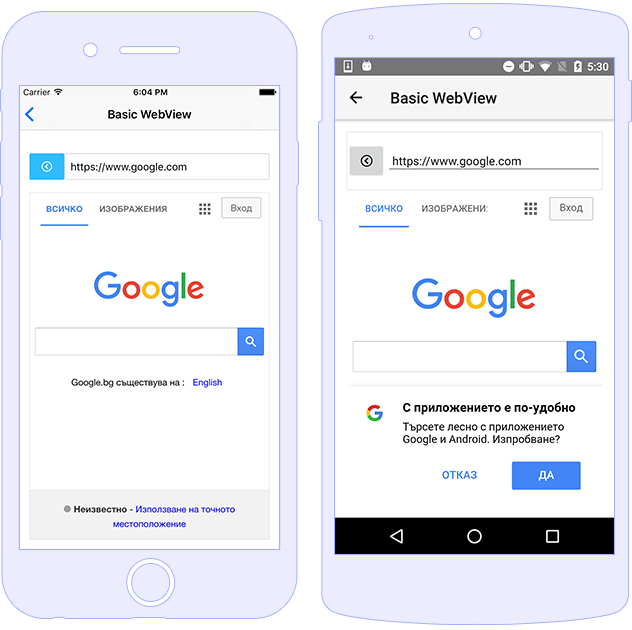
<WebView [src]="webViewSrc"
         (loadStarted)="onLoadStarted($event)"
         (loadFinished)="onLoadFinished($event)">
</WebView>
import { Component } from "@angular/core";
import { WebView, LoadEventData } from "tns-core-modules/ui/web-view";

@Component({
    moduleId: module.id,
    templateUrl: "./usage.component.html"
})
export class UsageComponent {
    webViewSrc = "https://docs.nativescript.org/";

    onLoadStarted(args: LoadEventData) {
        const webView = args.object as WebView;

        if (!args.error) {
            console.log("Load Start");
            console.log(`EventName: ${args.eventName}`);
            console.log(`NavigationType: ${args.navigationType}`);
            console.log(`Url: ${args.url}`);
        } else {
            console.log(`EventName: ${args.eventName}`);
            console.log(`Error: ${args.error}`);
        }
    }

    onLoadFinished(args: LoadEventData) {
        const webView = args.object as WebView;

        if (!args.error) {
            console.log("Load Finished");
            console.log(`EventName: ${args.eventName}`);
            console.log(`NavigationType: ${args.navigationType}`);
            console.log(`Url: ${args.url}`);
        } else {
            console.log(`EventName: ${args.eventName}`);
            console.log(`Error: ${args.error}`);
        }
    }
}
In the above samples, we are setting up loadStarted and loadFinished events. Both events will be emitted when there is a change the source for the WebView component (change the URL or load local HTML file). The loadStarted event will be executed when the WebView source start loading and loadFinished will be fired when the source is already loaded. The events will return info of type LoadEventData.
Improve this document
Demo Source
<GridLayout rows="50 50 *">
    <Label row="0" #touchlabel [text]="touchResult" textWrap="true" ></Label>
    <Label row="1" #panlabel [text]="panResult" textWrap="true" ></Label>
    <WebView row="2" (loaded)="onWebViewLoaded($event)"  (touch)="webViewTouch($event)" (pan)="webViewPan($event)" [src]="webViewSrc" ></WebView>
</GridLayout>
import { Component } from "@angular/core";
import { isAndroid } from "tns-core-modules/platform";

@Component({
    moduleId: module.id,
    templateUrl: "./tips-and-tricks.component.html"
})
export class TipsAndTricksComponent {
    webViewSrc = "<!DOCTYPE html><html><body><h1>My First Heading</h1><p>My first paragraph.</p></body></html>";
    touchResult = "Touch: x: _ y: _";
    panResult = "Pan: deltaX: _ deltaY: _";

    onWebViewLoaded(webargs) {
        const webview = webargs.object;
        if (isAndroid) {
            // Disabled the native zoom control (to enable gestures on Android)
            webview.android.getSettings().setDisplayZoomControls(false);
        }
    }

    webViewTouch(args) {
        this.touchResult = `Touch: x: ${args.getX().toFixed(3)} y: ${args.getY().toFixed(3)}`;
        console.log(`Touch: x: ${args.getX().toFixed(3)} y: ${args.getY().toFixed(3)}`);
    }

    webViewPan(args) {
        this.panResult = `Pan: deltaX: ${args.deltaX.toFixed(3)} deltaY: ${args.deltaY.toFixed(3)}`;
        console.log(`Pan: deltaX: ${args.deltaX.toFixed(3)} deltaY: ${args.deltaY.toFixed(3)}`);
    }
}
Note: To be able to use gestures in WebView component on Android, we should first disabled the zoom control. To do that we could access the android property and with the help of setDisplayZoomControls to set this control to false.
Improve this document
Demo Source
| Name |
Type |
Description |
src |
string |
Gets or sets the url, local file path or HTML string. |
| Name |
Returns |
Description |
reload |
void |
Reloads the WebView forcing updating of the content. |
| Name |
Description |
loadStarted |
Emitted when the content is starting to load. |
loadFinished |
Emitted when the content loading is over. |